![Oneview Logo RGB_Std (4).png]](https://helpdesk.oneviewhealthcare.com/hs-fs/hubfs/Oneview%20Logo%20RGB_Std%20(4).png?height=40&name=Oneview%20Logo%20RGB_Std%20(4).png)
Access the Wrike Form Request page by using the following link:
https://www.wrike.com/workspace.htm?acc=6165694&wr=25#/forms?formid=2487472
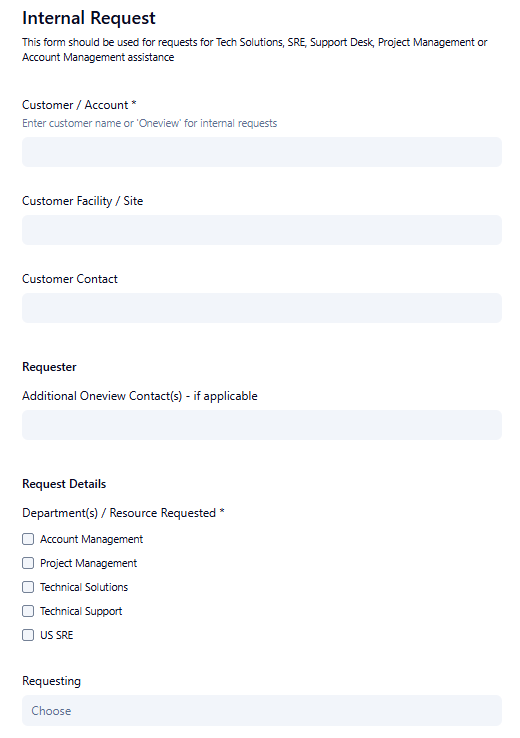
The Wrike request form has at least 6 mandatory fields that required information to be filled in. On the form, there are a total of 14 fields, with an additional space for area for adding attachments.
The mandatory fields that require information are:
Customer /Account * -- Enter the customer name or 'Oneview' for internal requests.
Customer Facility / Site -- Specify the customer facility or site name.
Customer Contact -- Specify a customer contact or resource for the request.
Requester -- Specify additional Oneview contact(s) if applicable.
Request Details * -- Select the department(s) that the request will be assigned to for research.
Requesting-- Choose the type of request from the menu. Choices include:
Internal Resource
Environment Build
Environment - Expansion
Environment - Upgrade
Technical Assistance Needed
Support Ticket Escalation
Client Feature or Configuration - New
Client Feature or Configuration - Change
PM Project - New or Update
Account Management or Customer Follow-up Needed
General Task
Other
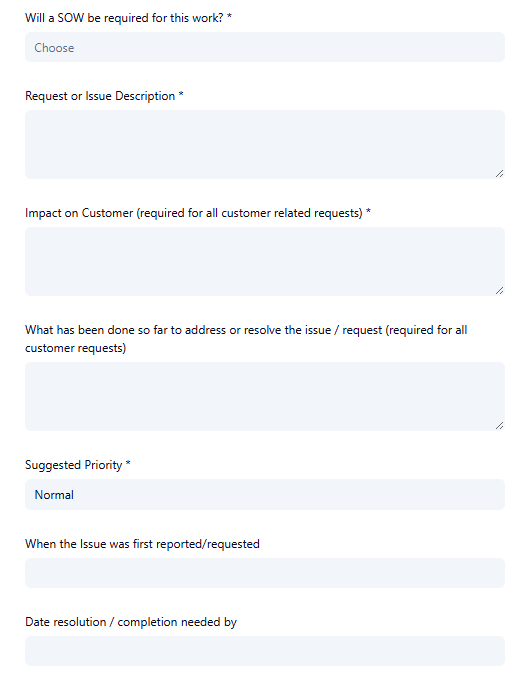
Will a SOW be required for this work? * -- Select Yes or No for if a Statement of Work or SOW will need to be generated for this work.
Request or Issue Description *-- Describe the request or issue that the request is concerning.
Impact on Customer (required for all customer related requests) * -- Describe the impact the customer is experiencing and could experience in relation to the work that is being requested.
What has been done so far to address or resolve the issue / request (required for all customer requests) -- Describe the pre-work, investigation, research, trouble shooting or analysis that has already been done prior to issuing the request.
Suggested Priority * -- Select priority level of the request from: Low, Normal, or High.
When the issue was first reported/requested -- Specify the date/time or period of time when the issue was first reported or requested.
Date resolution / completion needed by -- Specify when the resolution or completion time is needed by.
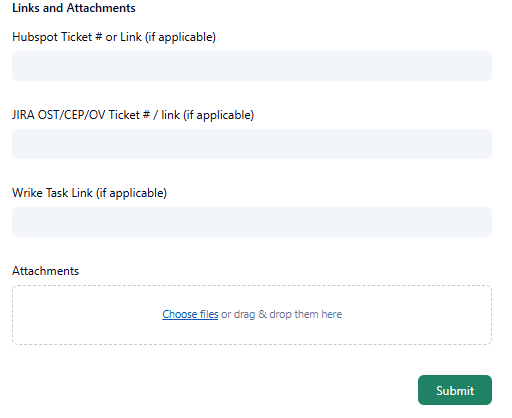
Links and Attachments
(Hubspot Ticket# or Link(if applicable) -- Include the Hubspot or attachment associated with the request or issue.
JIRA OST/CEP/OV Ticket # / link (if applicable) -- Include any JIRA OST, CEP, OV Ticket associated with the request or issue.
Wrike Task Link (if applicable) -- Include other related Wrike Task(s) associated with the request or issue.
Attachments -- Include related attachments associated with request or issue. ***Reminder to never include PHI in screen prints or attached documentation.
Form